


LV Vormor Z8
LV Vormor Z8
138 online voice languages
17 offline voice languages
Photo translation
No smartphone app required
Only a few left 9 items available!
Couldn't load pickup availability
Estimated delivery date - 〜 -.

LV Vormor Z8


BUILT FOR REAL CONVERSATIONS
Four powerful features that keep you understood wherever you go.
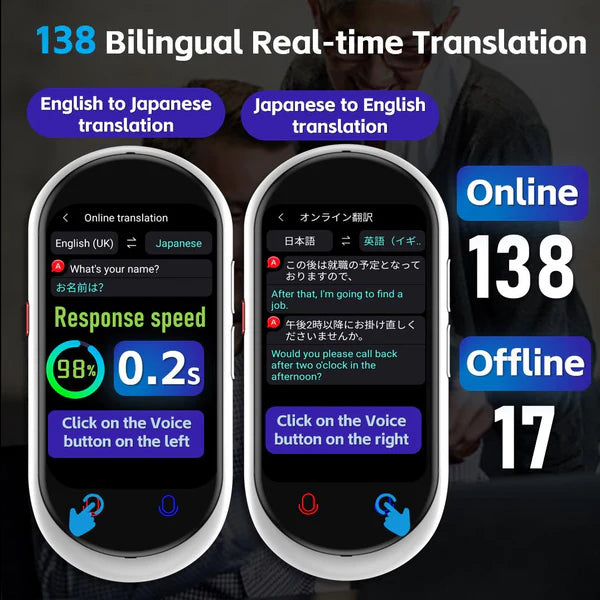
VOICE TRANSLATION
- Real-time, two-way voice translation
- Press, speak and hear the translation instantly
- Made for natural face-to-face conversations
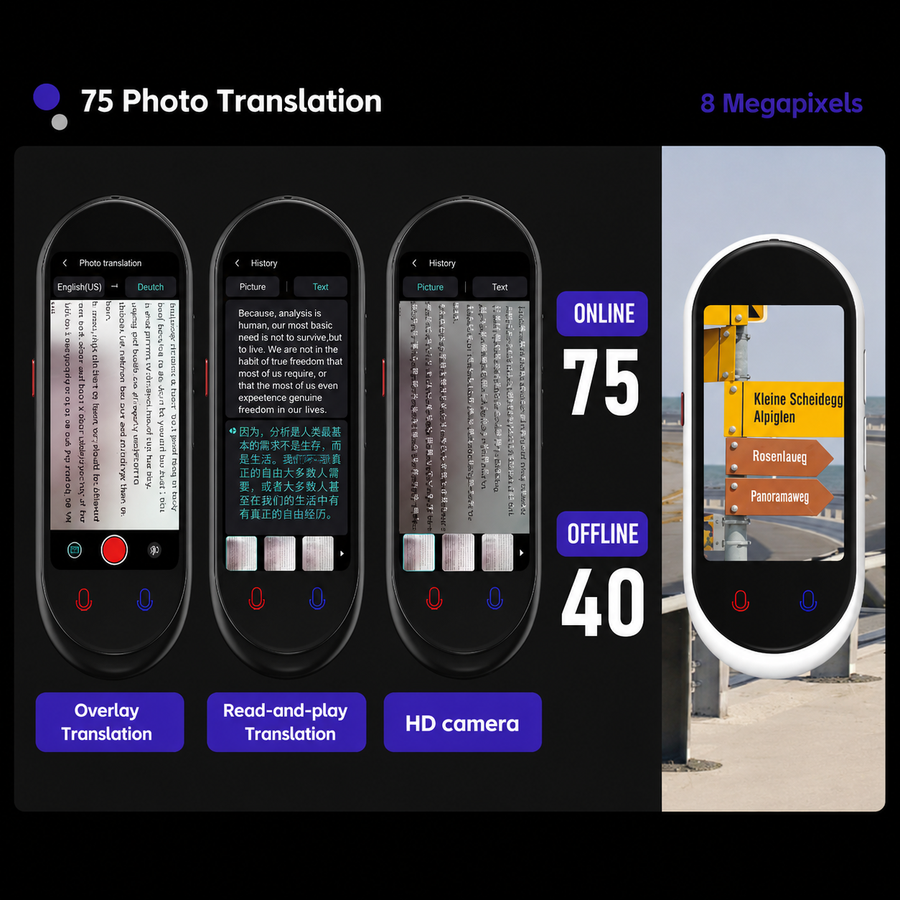
PHOTO TRANSLATION
- Point. Capture. Understand instantly.
- Translate menus, signs and documents in seconds
- No typing, no guessing — just clear answers on screen
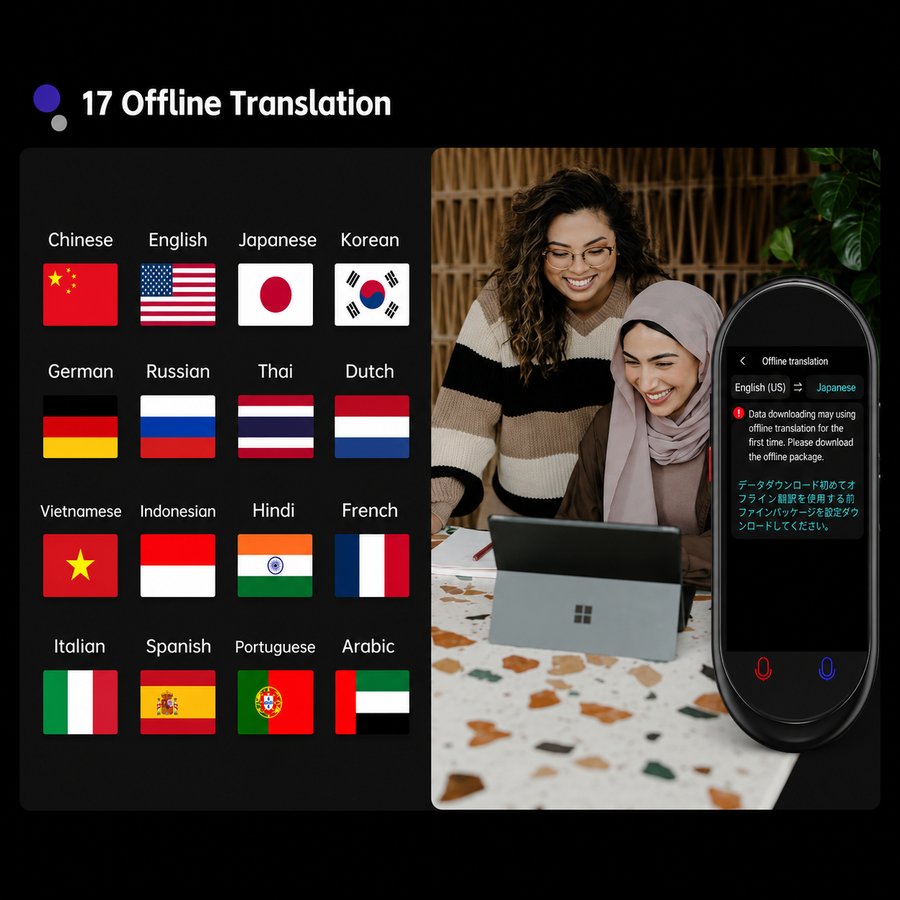
TRANSLATE ANYWHERE
- Download your offline language packs before you travel
- Keep translating even with no Wi-Fi or mobile signal
- No connection. No delays. No language barrier.
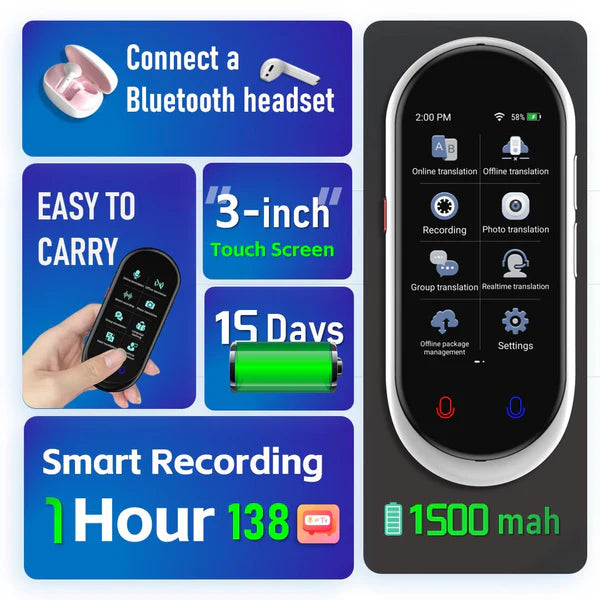
A DEVICE BUILT FOR THE JOB
- Its own battery keeps your phone free and charged
- Pocket-sized, lightweight and ready to travel
- Connect Bluetooth earbuds for private, hands-free translation

THE MOMENT EVERYTHING CLICKS
When language stops holding you back
You’re face-to-face with someone who speaks a different language — in a meeting, at a hotel, or during an important conversation. Press the button, speak naturally, and get understood in seconds.
No awkward pauses. No guessing. Just real communication.
SEE IT WORK
Translating, right in front of you
A few real phrases, translated the moment they're spoken.

WHAT'S INSIDE
The specs that actually matter
Confirmed by the manufacturer, not marketing copy.
Screen
3.0" HD IPS
Camera
8 MP
Battery
1500 mAh
Continuous use
8 HRS
Standby
7 DAYS
Charging
USB-C
Voice languages
138 / 17
Online / offline
Photo languages
75 / 40
Online / offline
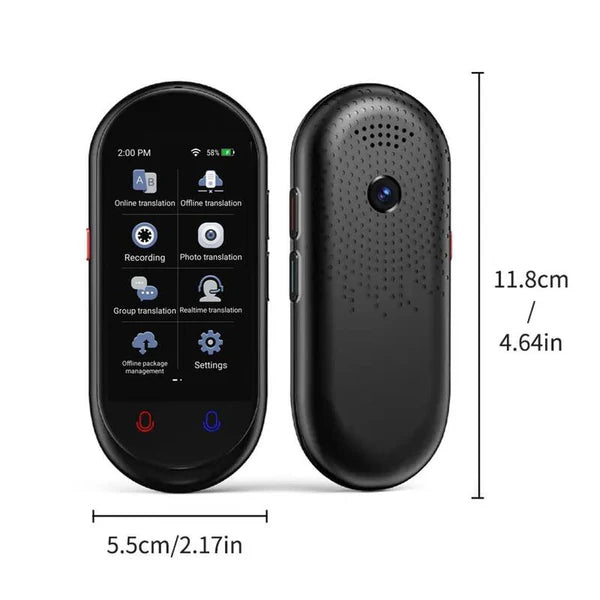
Dimensions
118×55×11 MM
Specifications as provided by the manufacturer. We update this list as we confirm each figure independently.
OFFLINE MODE
Setting up offline translation
Do this once before you travel, and it keeps working with no signal.

Open Settings and turn on Wi-Fi to connect.
Still in Settings, find "Offline Package Management," download the language packs you need, and select your languages.
Return to the home screen and tap Offline Translation to enter offline mode.
Turn off Wi-Fi, tap the downloaded language pack to select it, then press and hold the voice translation button.
WHY SERIOUS TRAVELLERS CHOOSE A REAL TRANSLATOR
Don’t risk an important conversation on a free app
Free apps are built for casual phrases. The Vormor Z8 is built for meetings, travel, border crossings and moments where being misunderstood can cost you time, money or an opportunity.
Your phone does everything. The Vormor Z8 does one job — and does it when it matters.
SHIPPING & GUARANTEE
We stand behind it, plainly
No fine print games. Here's exactly what you're covered by.
Every device is covered against manufacturing defects for 12 months from delivery. If something's wrong with the hardware, email us and we'll sort it out.
Not the right fit? Items in resalable, unopened condition can be returned within 14 days of delivery.
Prices shown include GST — no surprise charges at checkout.
Questions before you order? support@lingoveya.com
BEFORE YOU ASK
Everything, clearly explained
No hidden catches. If it's not here, just email us.
Which languages are supported for offline translation?
Offline voice translation supports 17 languages: English, Chinese (Simplified and Traditional), Korean, French, German, Spanish, Arabic, Russian, Thai, Hindi, Japanese, Portuguese, Italian, Dutch, Indonesian, and Uyghur.
How many languages are supported in total?
When connected online, the device supports voice translation in 138 languages across 283 countries. Photo translation is available in 75 languages online and 40 languages offline.
Can it be used on its own without a smartphone?
Yes, the device can be used independently. Connect it to Wi-Fi or use a mobile hotspot for online translation, or switch to offline mode when Wi-Fi is unavailable. No smartphone app installation is required.
How long does the battery last, and how is it charged?
It features a high-capacity 1,500 mAh battery, providing up to 8 hours of continuous use on a full charge. In standby mode, the battery lasts up to 7 days. It charges via a USB-C cable and takes approximately 90 minutes to fully charge.
How do I use the photo translation feature?
From the home screen, select “Photo Translation,” point the built-in camera at the text you want to translate—such as a sign, menu, or document—and press the shutter button. The AI will automatically recognize the text and display the translation.
How do I use the ChatGPT feature?
Select “ChatGPT” from the home screen to use ChatGPT directly on the device. In addition to translation, you can use it to search for local information, create written content, answer questions, and more.